How to Check What Motherboard You Have (Fast & Easy Guide)
How to Check What Motherboard You Have (Fast & Easy Guide)
In this guide, I'll walk you through every way to check what motherboard you have, whether you're on Windows or sitting in front of a closed case.
Let’s get started!
🖥️ Why You Might Need to Know Your Motherboard Model
Before we dive in, here are a few common reasons you might want to identify your motherboard:
- You're planning a CPU or RAM upgrade
- You need to check for BIOS updates
- You want to install a new GPU
- You're troubleshooting issues
- You’re just curious (hey, no judgment!)
🧰 Method 1: Use System Information in Windows
This is the easiest way to check without installing anything.
🔧 Steps:
- Press
Windows Key + R - Type
msinfo32and hit Enter - Look for:
- BaseBoard Manufacturer
- BaseBoard Product
- BaseBoard Version
📌 This tells you the make and model of your motherboard.
✅ Best for: Beginners who want a quick look
🧪 Method 2: Use a Free Tool Like CPU-Z
CPU-Z is a free utility that tells you everything about your system.
🛠️ How to Use:
- Download and install CPU-Z
- Open the app
- Go to the Mainboard tab
Here you'll see:
- Manufacturer
- Model
- Chipset
- BIOS version
💡 Bonus: It also tells you your CPU, RAM type, and more!
✅ Best for: Builders, upgraders, and enthusiasts
🔗 Download CPU-Z (official site)
🔍 Method 3: Use Command Line
If you prefer typing commands like a pro:
💻 Open Command Prompt:
- Press
Windows Key + R, typecmd, hit Enter - Run this command:
wmic baseboard get product,manufacturer,version,serialnumber
You’ll get your motherboard’s manufacturer, model, and more.
✅ Best for: Advanced users who prefer the terminal
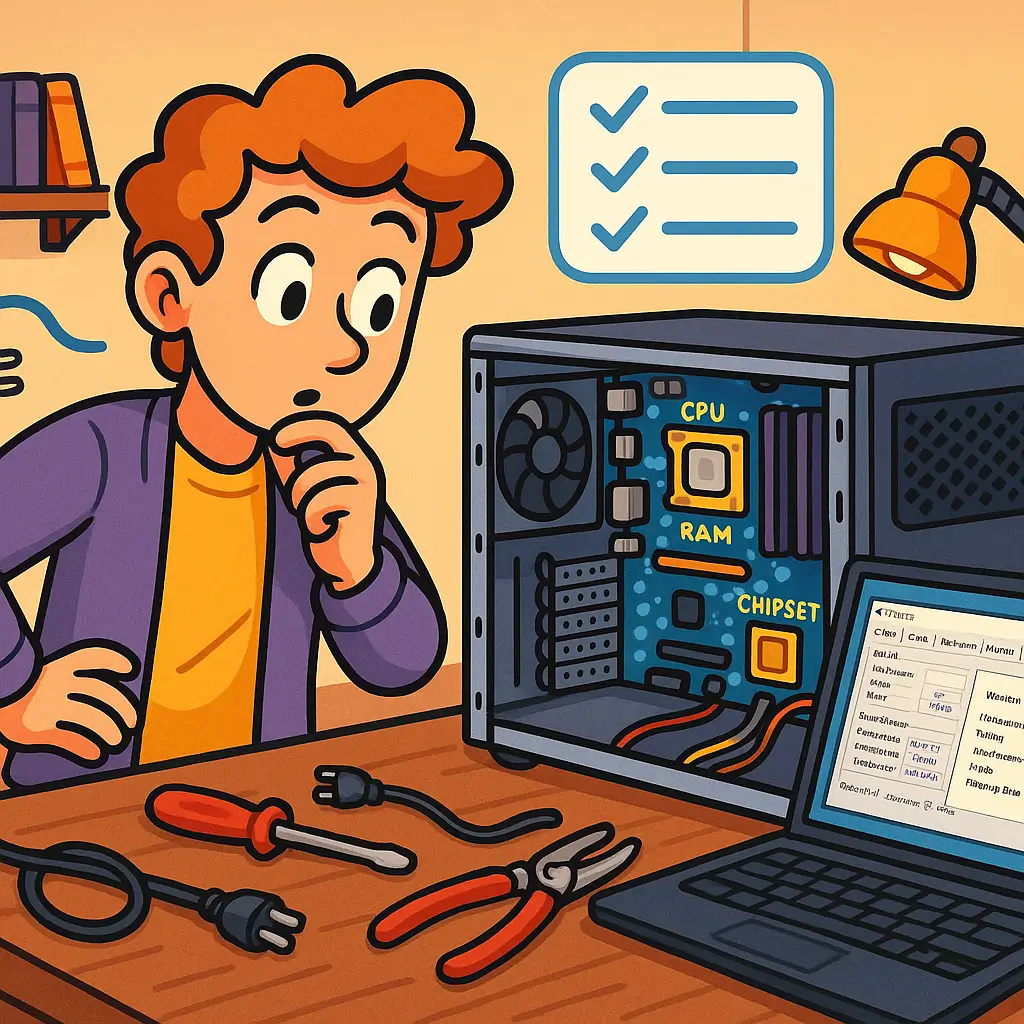
🛑 Method 4: Physically Check Your Motherboard (If You Can Open It)
Sometimes the old-fashioned way is the best way.
📦 What to Do:
- Turn off your PC
- Open the side panel
- Look for text printed on the motherboard—usually around the RAM slots or CPU socket
🧩 It will look like something like:
ASUS PRIME B550M-A (Wi-Fi)
Take a photo if needed. Then look up the model online for specs.
✅ Best for: Desktop PCs with visible motherboards
🔄 Recap: Ways to Tell What Motherboard You Have
| Method | Tools Needed | Works On | Skill Level |
|---|---|---|---|
| System Info | Built-in | Windows | Beginner |
| CPU-Z | Free download | Windows | Beginner+ |
| Command Line | None | Windows | Intermediate |
| Open Case | None | Any PC | Advanced |
🛍️ Planning to Upgrade? Check Compatibility First
Once you know your motherboard model, you can:
- Look up CPU support lists
- Confirm RAM type & capacity
- Check if your board has PCIe 4.0, M.2 slots, or Wi-Fi
👉 Pro Tip: Use PCPartPicker to test compatibility before buying upgrades.
❓ Frequently Asked Questions
🤔 How can I find out what motherboard I have?
You can find out what motherboard you have by using built-in tools like System Information on Windows (msinfo32), free software like CPU-Z, or by opening your case and looking for the printed model number.
🧠 How do I check my motherboard model in Windows 10 or 11?
Press Windows Key + R, type msinfo32, and press Enter. Look for BaseBoard Manufacturer and BaseBoard Product to see your motherboard’s brand and model.
🛠️ How can I tell what motherboard I have without opening my PC?
Use software tools like CPU-Z or the Windows command prompt. These methods let you find your motherboard details without physically opening your case.
💾 How do I know if my motherboard supports a certain CPU or RAM?
After identifying your motherboard model, check the official manufacturer's website for the CPU support list and RAM specifications. You can also use PCPartPicker to ensure compatibility.
🧠 Final Thoughts
Whether you’re asking:
- "How do I know what motherboard I have?"
- "How can I check what motherboard I have without opening the case?"
— now you have all the answers.
For most people, CPU-Z or System Info is more than enough. But if you're diving deep into overclocking or part upgrades, knowing your exact motherboard model is a must.