
How to Fix High CPU Usage: 7 Ways to Lower CPU Usage in Windows
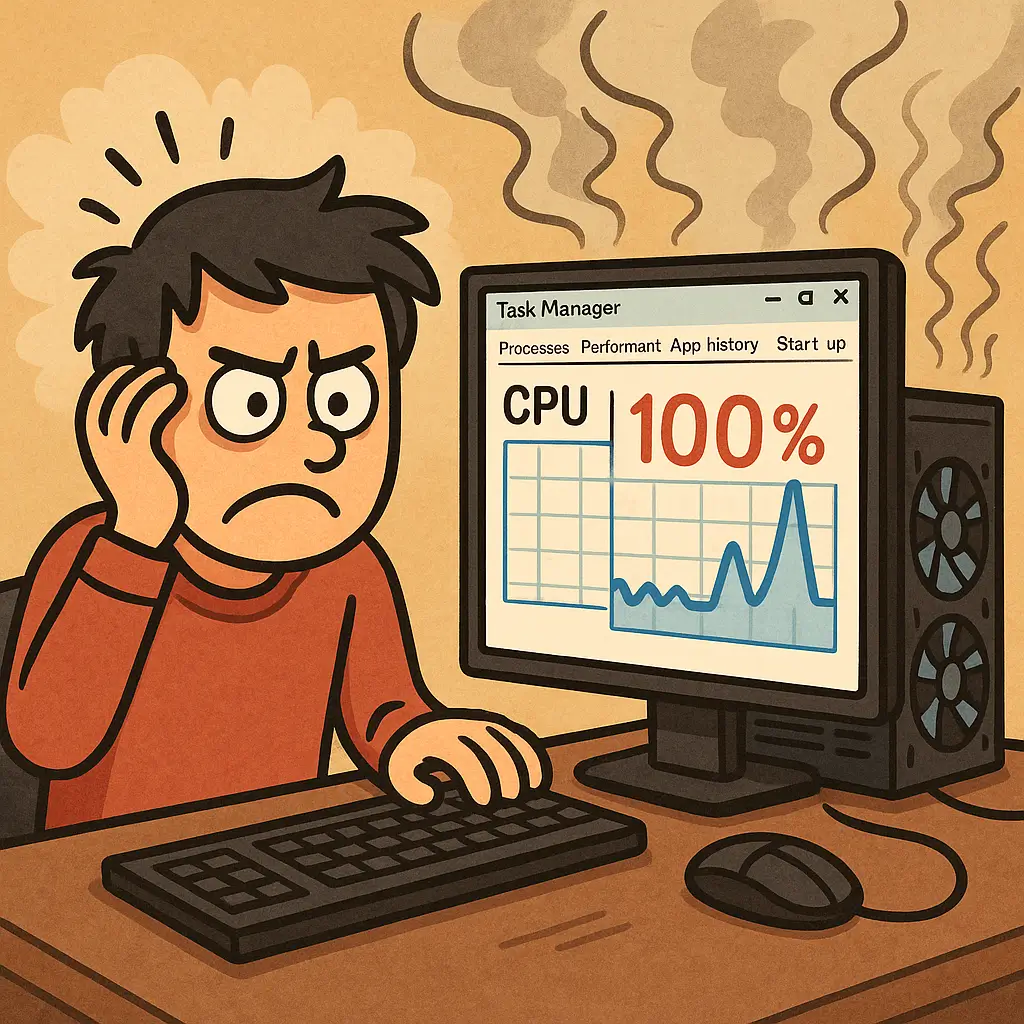
High CPU usage slowing down your PC? You’re not alone. Whether you're gaming, working, or just browsing, CPU usage spikes can make your computer feel sluggish. In this guide, I’ll explain:
- What causes high CPU usage
- Why your CPU is running at 100%
- And most importantly — how to fix it
Let’s dive in.
Quick Answer: How to Fix High CPU Usage
High CPU usage is typically caused by background processes, malware, or outdated drivers. To fix it:
- Check Task Manager (Ctrl+Shift+Esc) and end high-usage processes
- Scan for malware using Windows Defender
- Update drivers and BIOS
- Adjust power settings to Balanced
- Disable unnecessary background apps
For detailed steps, continue reading below.
💡 What Does High CPU Usage Mean?
CPU usage represents how much of your processor's capacity is being used at any given moment. Think of it like a highway:
- 0-30% = Light traffic - Normal for basic tasks like web browsing
- 30-70% = Moderate traffic - Expected during multitasking or productivity work
- 70-90% = Heavy traffic - Common during gaming, video editing, or file compression
- 90-100% = Traffic jam - May indicate problems if sustained during light tasks
High CPU usage becomes a problem when:
- It stays elevated during simple tasks
- Your computer becomes slow or unresponsive
- Fans run constantly at high speed
- Applications take forever to load
⚠️ Why Is My CPU Usage So High?
Here are some common causes:
- Too many background processes
- Malware or crypto miners
- Outdated drivers or BIOS
- Windows services (e.g. Windows Update, WMI Provider Host)
- Heavy browser tabs or extensions (like Chrome or Edge)
- Game overlays, RGB apps, or background launchers (Steam, Epic)
Want to know how your CPU stacks up? Compare your processor to others on the market.
How to Check CPU Usage in Windows
- Task Manager Method: Press
Ctrl + Shift + Esc, click "More details", view CPU column - Resource Monitor: Type
resmonin Start menu for advanced monitoring - Performance Tab: Shows real-time CPU usage graphs and per-core utilization
- Command Line: Use
wmic cpu get loadpercentage /valuefor quick check
🧰 How to Lower CPU Usage (Step-by-Step)
1. Check Task Manager
- Press
Ctrl + Shift + Esc, sort by CPU - Look for processes using high CPU
- Identify any apps eating up 90–100% of your CPU.
- Right-click and select End Task to close them.
- Disable any unnecessary startup programs on Startup tab.
If you see a process like System Idle Process, it means your CPU is mostly free, which is good.
2. Scan for Malware
Malware like hidden crypto miners can silently consume CPU cycles.
- Windows Defender or Malwarebytes Free
- Run a full system scan to catch any malicious software.
- If you find anything suspicious, remove it and reboot.
3. Update Drivers and BIOS
Outdated chipset or GPU drivers can cause CPU usage spikes.
- AMD Users: Download latest chipset drivers
- Intel Users: Intel Driver & Support Assistant
BIOS updates can also fix power/thermal bugs — check your motherboard's support page.
4. Adjust Power Settings
Set your power plan to Balanced or Power Saver instead of High Performance.
- Go to Control Panel → Power Options
- Select Balanced or Power Saver
- This reduces CPU speed when idle, lowering overall usage.
5. Disable Background Apps
Some apps run in the background even when closed (e.g. Discord, OneDrive, Adobe CC).
- Settings → Privacy → Background apps
- Turn off apps you don’t need running all the time.
6. End Unnecessary Services
Use services.msc in Windows to review what's running. Be careful not to disable essential services.
Tip: Tools like Autoruns show hidden startup processes.
7. Check for Windows Update Bugs
Some Windows updates are known to cause CPU spikes. Search your update number to see if it’s reported, and roll back if needed.
🚨 What to Do When CPU Usage Hits 100%
When your CPU usage reaches 100%, your computer becomes unresponsive. Here's the immediate action plan:
Emergency Steps for CPU Usage 100%
- Don't panic - 100% CPU usage during intensive tasks is normal
- Open Task Manager - Press Ctrl+Alt+Del if regular shortcuts don't work
- Identify the culprit - Sort by CPU usage to find the problematic process
- Force close if necessary - Right-click → End Task for non-essential processes
- Wait it out - Some processes (like Windows Update) need to complete
Warning Signs of Problematic 100% CPU Usage
- Occurs during light tasks (web browsing, file copying)
- Persists for hours without intensive work
- Accompanied by high temperatures or fan noise
- System becomes completely unresponsive
"High CPU Usage Detected" Alerts - What to Do
If you're seeing "High CPU Usage Detected" warnings from your antivirus or system monitor:
Immediate Steps:
- Don't ignore it - This could indicate malware or system problems
- Check what's running - Open Task Manager to identify high-usage processes
- Verify legitimacy - Unknown processes could be malware or crypto miners
- Run a scan - Use Windows Defender or Malwarebytes to check for threats
False Positives:
- Video rendering or gaming can trigger these alerts normally
- Windows Update or system maintenance may cause temporary spikes
- Antivirus scans themselves consume significant CPU resources
🖥️ Windows 11 Specific CPU Usage Issues
Windows 11 introduced several changes that can impact CPU usage. Here's what to check:
New Windows 11 Features That May Increase CPU Usage
Widgets Service
- The Widgets panel can consume CPU in the background
- Fix: Right-click taskbar → Turn off "Widgets" or disable via Group Policy
- Location:
Settings → Personalization → Taskbar → Widgets (Off)
Enhanced Search Indexing
- Windows 11's improved search indexes more file types
- Fix: Limit indexed locations in
Settings → Privacy & Security → Searching Windows → Advanced Search Indexer Settings
Microsoft Teams Integration
- Built-in Teams can run background processes even if unused
- Fix: Uninstall via
Settings → Apps → Microsoft Teamsor disable startup
VBS (Virtualization-Based Security)
- Can cause 5-15% CPU overhead on older processors
- Fix: Only disable if you understand security implications
- Check status: Run
msinfo32and look for "Virtualization-based security"
Windows 11 Task Manager Improvements
Windows 11's Task Manager has new features for better CPU monitoring:
- Efficiency mode: Right-click apps to limit their CPU usage
- Enhanced details: Shows CPU architecture and virtualization status
- Better startup impact: More accurate startup program impact ratings
Windows 11 Power Management
New Power Plans
- Windows 11 introduced "Balanced (recommended)" with better CPU scaling
- Best Performance mode can increase idle CPU usage
- Fix: Use
powercfg /listto see available plans, switch to Balanced
Modern Standby Issues
- Some PCs experience high CPU usage coming out of Modern Standby
- Fix: Check
powercfg /sleepstudyfor wake events - Disable fast startup if problems persist
Compatibility Issues
Older CPUs Without TPM 2.0
- Unsupported hardware may cause system instability and higher CPU usage
- Check: Use PC Health Check app to verify compatibility
Driver Compatibility
- Windows 11 requires newer drivers; outdated ones can cause CPU spikes
- Priority: Update motherboard chipset drivers first, then GPU drivers
🎮 How to Lower CPU Usage in Games
- Lower in-game settings, especially physics, AI, and draw distance
- Turn off game overlays (e.g. Steam, GeForce Experience, Discord)
- Enable Game Mode in Windows settings
- Use hardware-accelerated GPU scheduling if supported
🧊 CPU Cooling Can Help
High CPU usage also generates more heat, so make sure your cooling setup is adequate.
- Clean out dust from fans and heatsinks
- Reapply thermal paste (if your CPU is a few years old)
- Upgrade your cooler: See our best budget CPU coolers
🔄 When to Upgrade Your CPU
If you’ve tried everything and CPU usage still stays high, your chip may just be outdated. Consider upgrading if:
- Your CPU is more than 5 years old
- You hit 100% usage regularly during games or editing
- Your processor lacks modern instructions like AVX or AI support